Help Center > Reviewer Portal
Reviewer Portal
Squarum Knowledge Base Article
Last Updated: November 28, 2025
About the Reviewer Portal
The App Reviewer Portal is designed for making the approval and revoking of user access as easy as possible for the Access Review Reviewers.
With the Reviewer Portal, users are listed in a table format with each user presented by row, and the Reviewer can take action to either approve or revoke the access to the app being reviewed.
How to log in to the Reviewer Portal?
When an Access Review is activated, the Reviewers will receive an email with the link to the Reviewers Portal. During the log in process a one-time password is sent to the Reviewers email address.
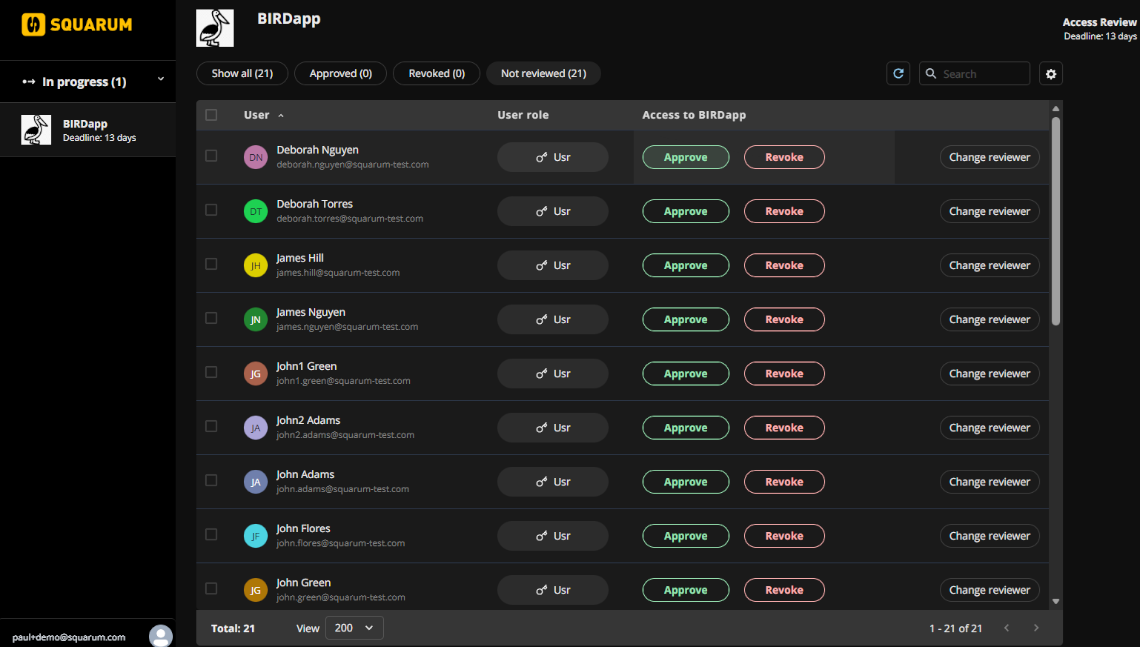
Main elements of the Reviewer Portal
Elements and functionality of the Reviewer Portal
- Left menu: All Access Reviews designated to the Reviewer are shown on the left menu categorized by status. Access Reviews in ‘In progress’ status requires the Reviewers action.
- Left bottom menu: Log out or change theme (datk mode/light mode)
- Table views (top of table)
- Show all: shows list of all users (approved, revoked, not reviewed)
- Approved: shows list of approved users
- Revoked: shows list of revoked users
- Not reviewed [default view]: shows list of user to be reviewed
- Table Actions
- Approve: click this button to approve access to the app
- Revoke: click this button to revoke access to the app
- Change reviewer: click this button if you are not the Reviewer of this user. An email and notification is sent to the App Owner who can designate another Reviewer.
- Reset: this button is only shown when a user has been reviewed (approved/revoked). Click this button if you want to cancel your selection.
Finishing the Access Review
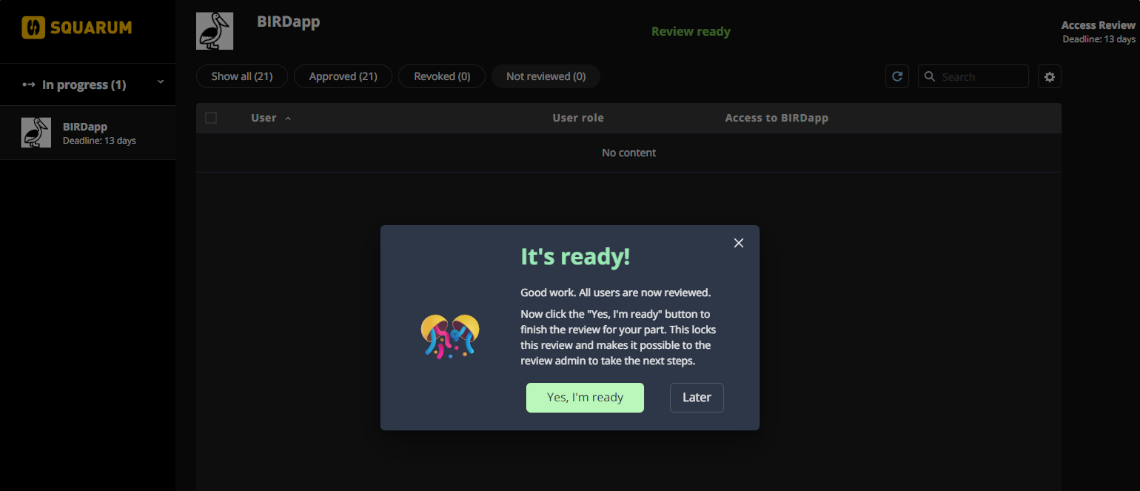
When all users have been reviewed by the Reviewer, the Access Review has to be separately Finished by the Reviewer. This is done by clicking the “It’s ready!” button that is shown for the Reviewer when all the users have been reviewed. After all Riewers have finished their reviews, the Access Review is automatically set to ‘FInished’ status.
Previous
Next
Apps
Have more questions?
Don’t worry, you can always contact us by email. We are more than happy to assist.