Help Center > Setting up an User Access Review

Setting up an User Access Review

Squarum Knowledge Base Article

Last Updated: December 1, 2025

Overview

  1. Setting up an User Access Review is by default performed by the App Owner by using the App Owner Portal.
  2. The link to the App Owner Portal is delivered in the automated invitation email when creating the User Access Review.
  3. The set up can also be done using the Admin console which is only available for Squarum Admins.

Getting Started

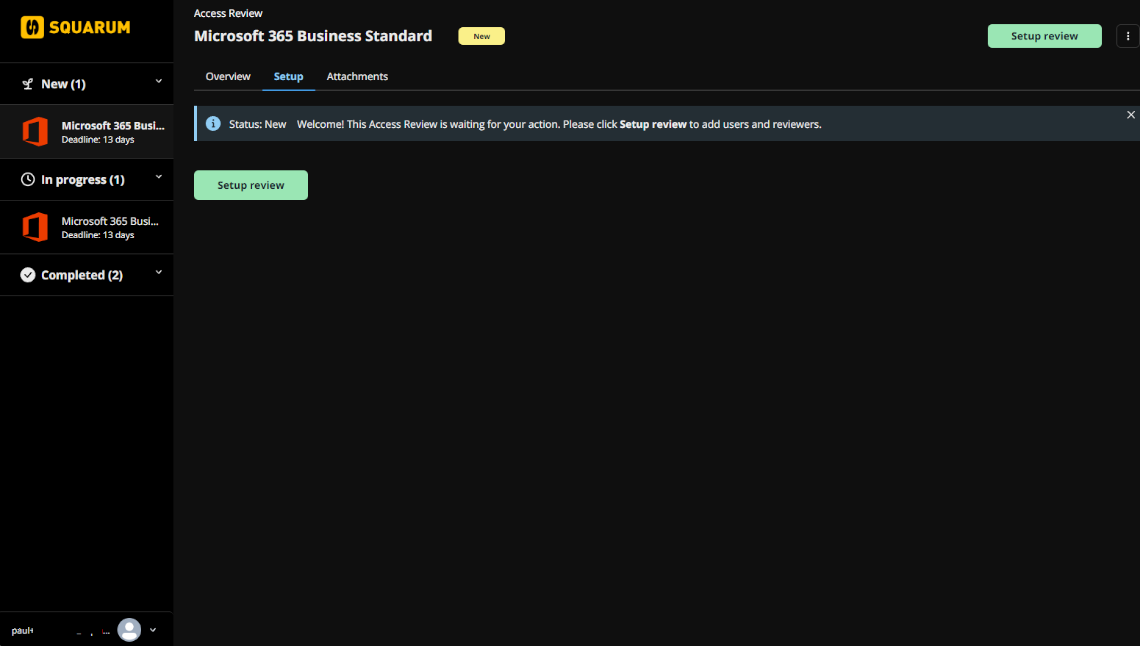
  1. Navigate to the App Owner Portal and log in.
  2. When logged in to the App Owner Portal, select the User Access Review waiting for being set up (current status is New).
  3. Click the Setup review button.

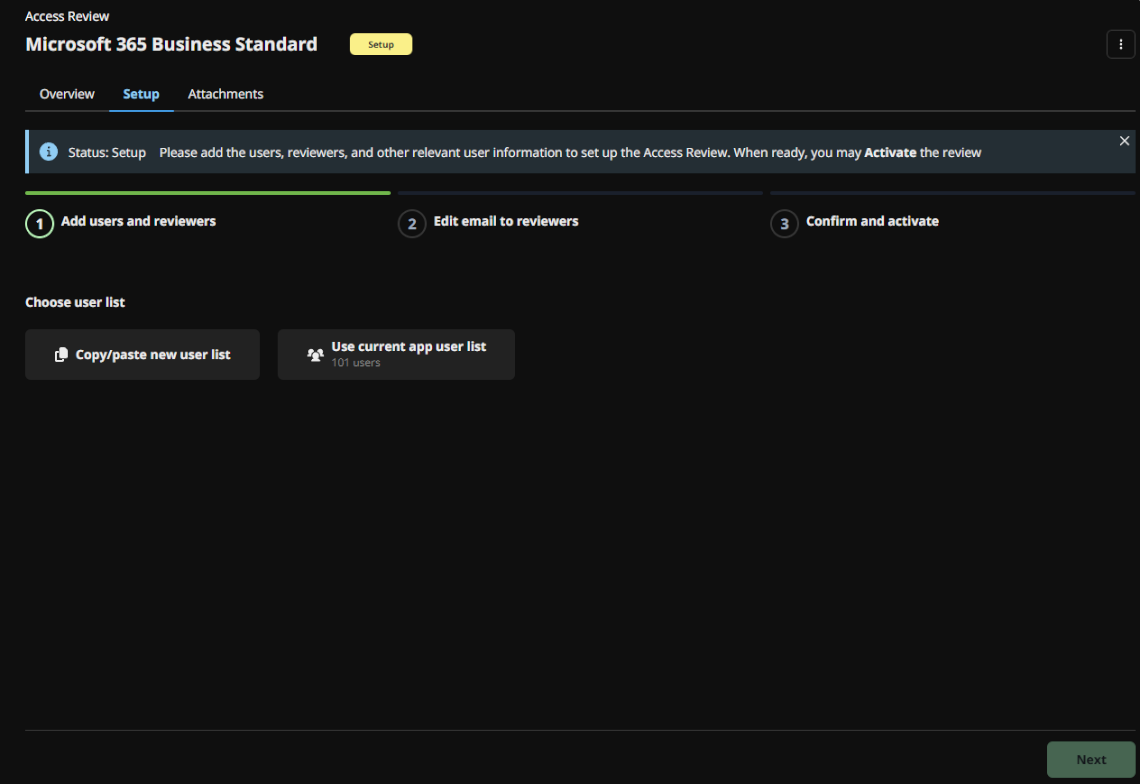
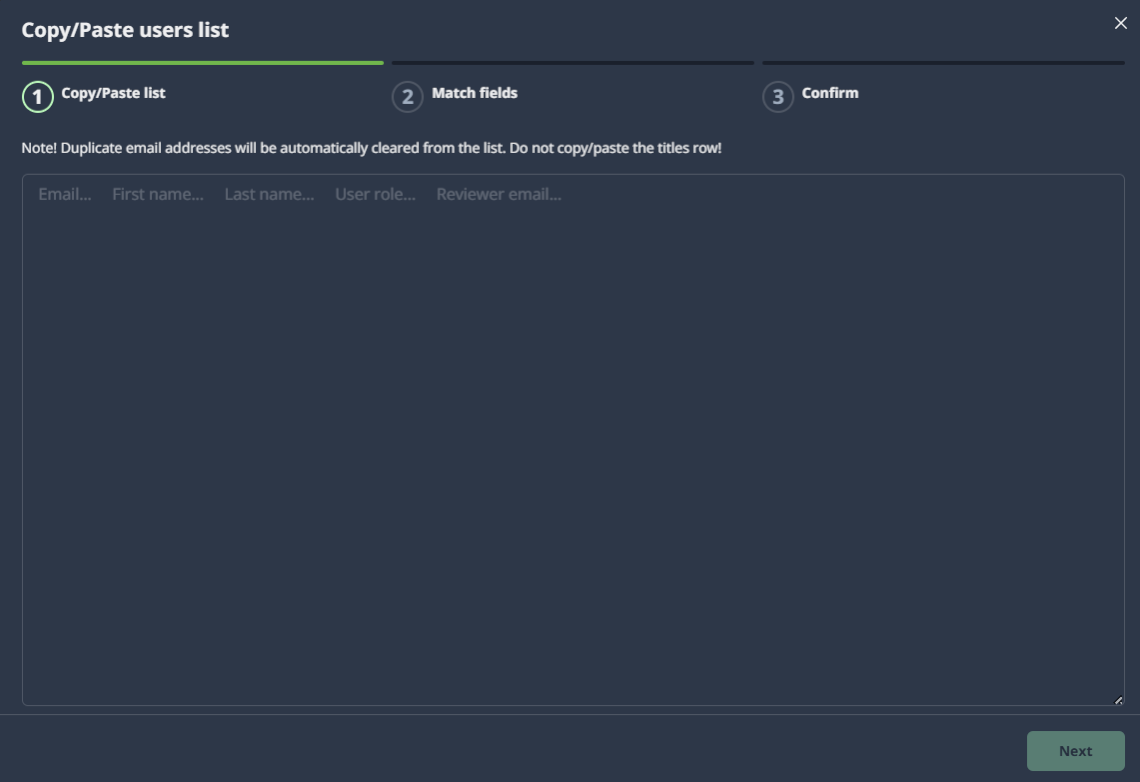
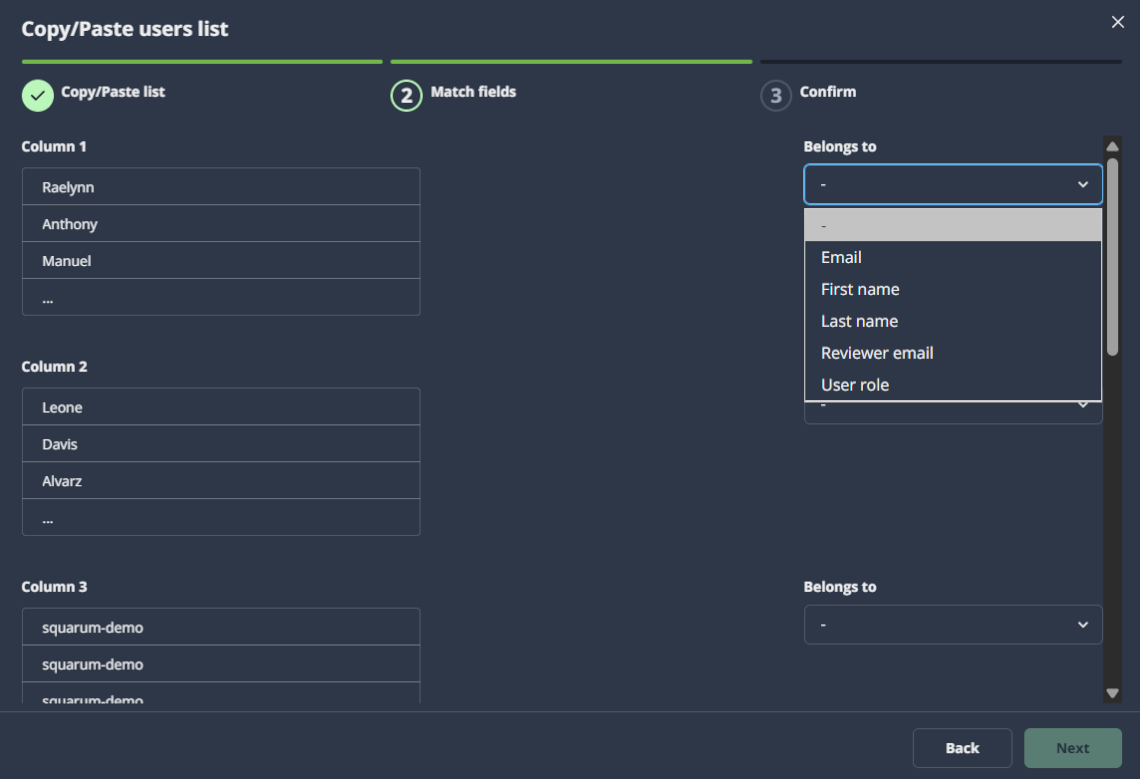
STEP 1: Add users and reviewers

Access Review ready

When all users have been reviewed by the Reviewer, the Access Review has to be separately Finished by the Reviewer. This is done by clicking the “It’s ready!” button that is shown for the Reviewer when all the users have been reviewed. After all Riewers have finished their reviews, the Access Review is automatically set to ‘FInished’ status.

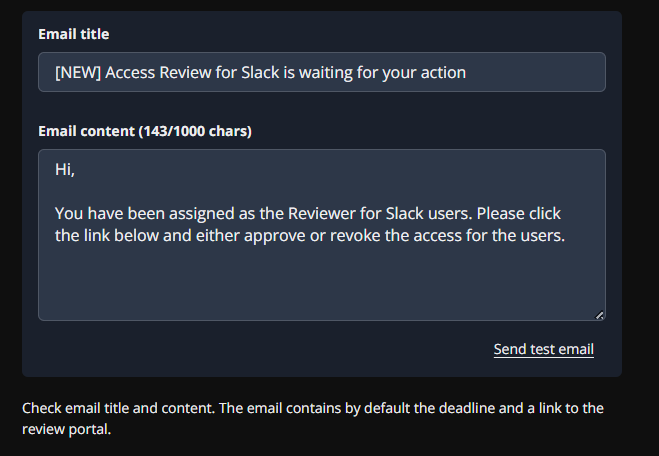
STEP 2: Check and configure email for Reviewers

Access Review ready

When all users have been reviewed by the Reviewer, the Access Review has to be separately Finished by the Reviewer. This is done by clicking the “It’s ready!” button that is shown for the Reviewer when all the users have been reviewed. After all Riewers have finished their reviews, the Access Review is automatically set to ‘FInished’ status.

What happens after the User Access Review has been activated?

  1. An email with a link to the activated User Access Review is sent to all Reviewers.
  2. The App Owner can monitor the progress of the User Access Reviews via the App Owner Portal.
  3. The Admin can monitor the progress of the User Access Review via the Admin console.

Have more questions?

Don’t worry, you can always contact us by email. We are more than happy to assist.

support@squarum.com