Help Center > Managing Apps

Managing Apps

Squarum Knowledge Base Article

Last Updated: February 2, 2026

Overview

In order to make an User Access Review, the app must be created. When starting a new User Access Review, the app name is asked as the 1st question. If the app does not exist in Squarum, it will be created when starting the Access Review.

Apps can be created either from

  1. From the Apps menu: Choose from the left navigation menu ‘Apps’ > Click the ‘+ Add app’ button
  2. From the Access Reviews menu: Choose from the left navigation menu ‘Access Reviews’ > Click ‘Start Review’ button > Click ‘Add app’ button from the ‘Choose app’ dropdown

Basic App Settings

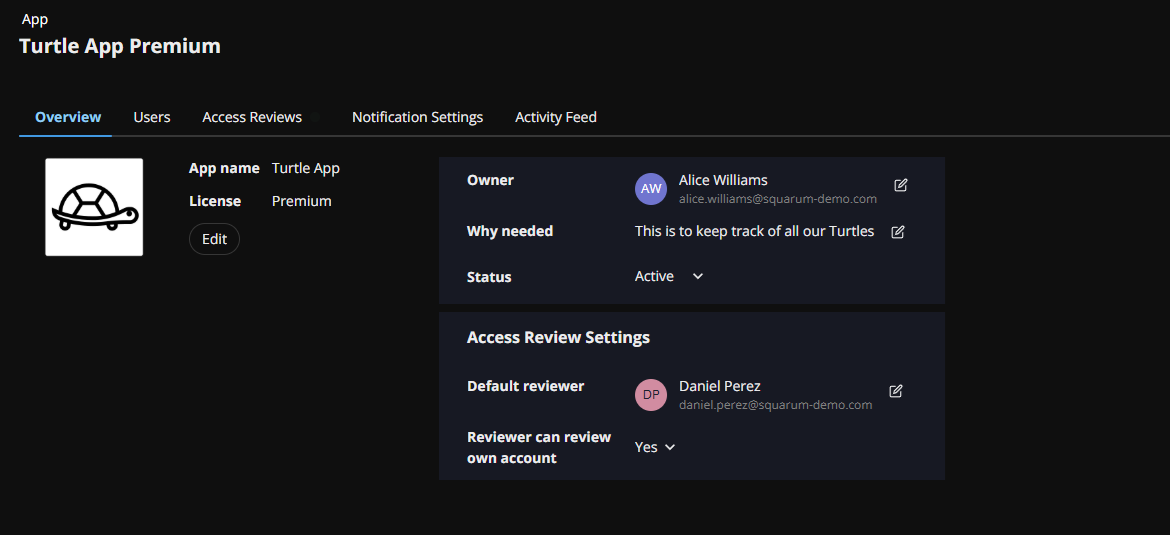
An app item have following basic settings (only available from the Apps page):

  • App name: Provide the app name (compulsory field)
  • License: Provide the license, plan or version of the app (optional field)
  • Icon: Upload the app icon or logo as png-file (optional)
  • Owner: Enter the app owner email address (compulsory)
  • Why needed: additional info of why the app is in use in your organization (optional)
  • Status: Active / Inactive
UAR apps

App Wide Access Review Settings

Default reviewer: define the default reviewer for an user when adding users to the Access Review. If the reviewer is available in the new copy/paste list or if the reviewer can be found from a previous review, then these are used. Only if the reviewer cannot be found for a user to be reviewed, then this setting is used.

Reviewer can review own account: Choose Yes, if the reviewer can Approve/Revoke own account. Choose No, if the reviewer cannot be same as the User being reviewed.
Have more questions?

Don’t worry, you can always contact us by email. We are more than happy to assist.

support@squarum.com