How to create a new User Access Review?
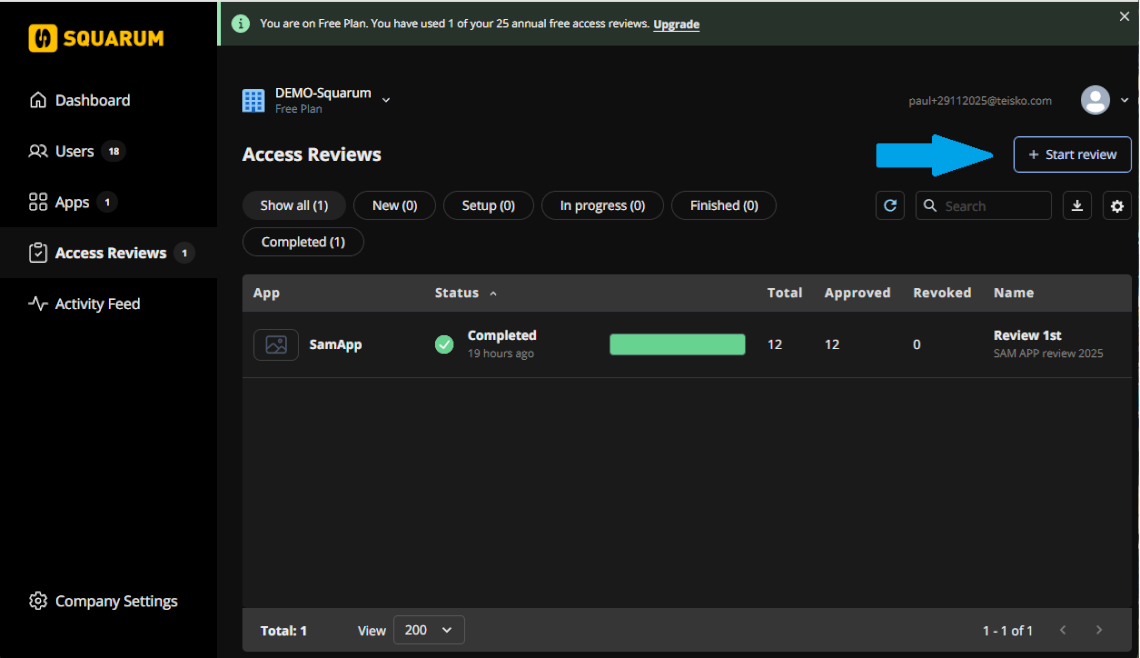
Log in to Squarum and click the ‘+Start review‘ button.
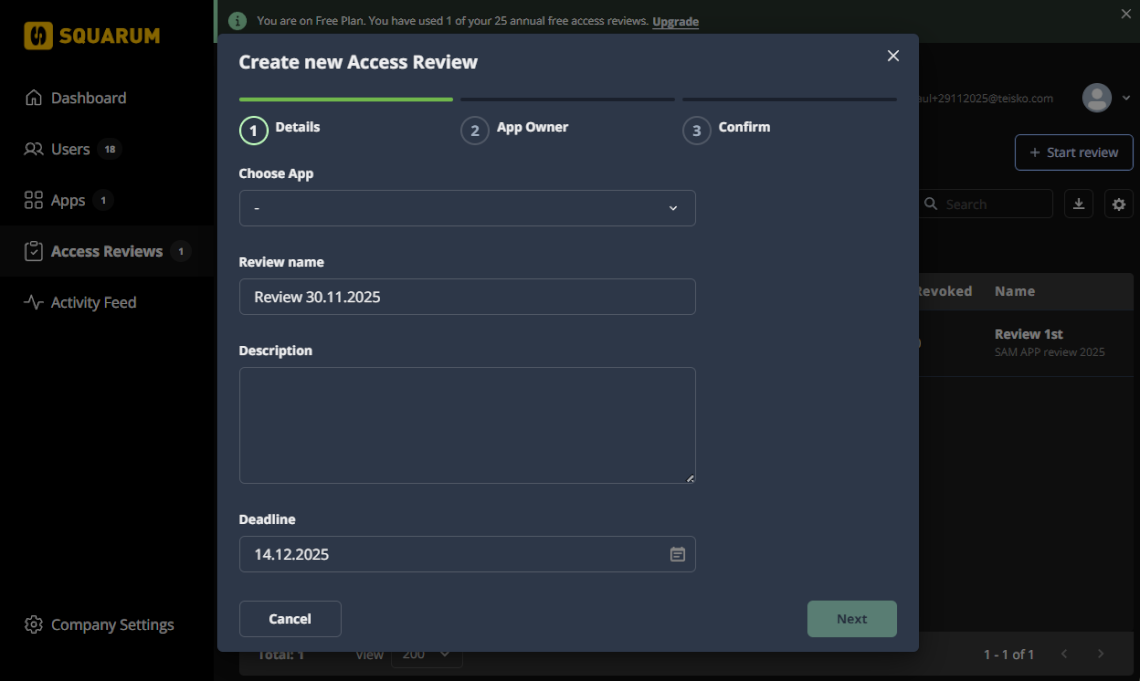
STEP 1: Enter the basic information:
- Choose the App which users are going to be reviewed.
- Enter a name for the Access Review.
- Enter a description for the Access Review.
- Enter the deadline for the Access Review.
All of these can be modified in later steps.
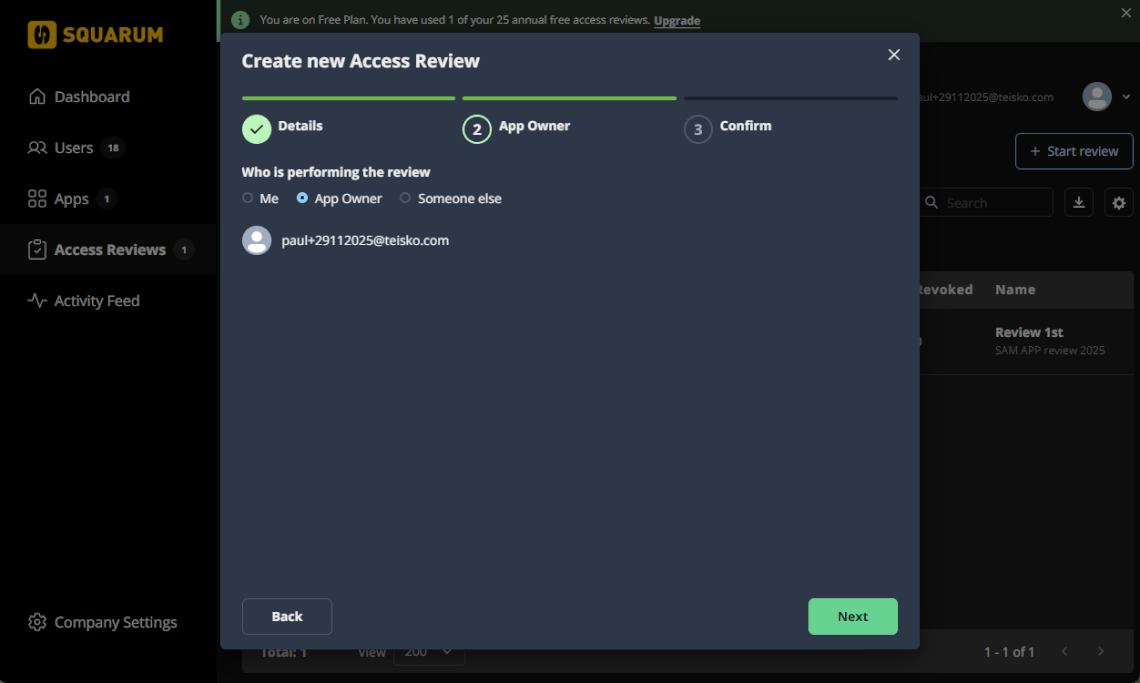
STEP 2: Choose who is performing the Access Review.
- Yourself: you are set as the App Owner and an email with the link to the App Owner Portal is sent to your email address.
- App Owner: currently defined in the role of an App Owner.
- Someone else: choose this option to define a new App Owner and send an invitation email with a link to the App Owner Portal.
Note! In Squarum the App Owner is by default responsible for setting up the Access Review users and reviewers. The Squarum admin can also perform the actions required in the set up phase. All actions taken are logged into the event log.
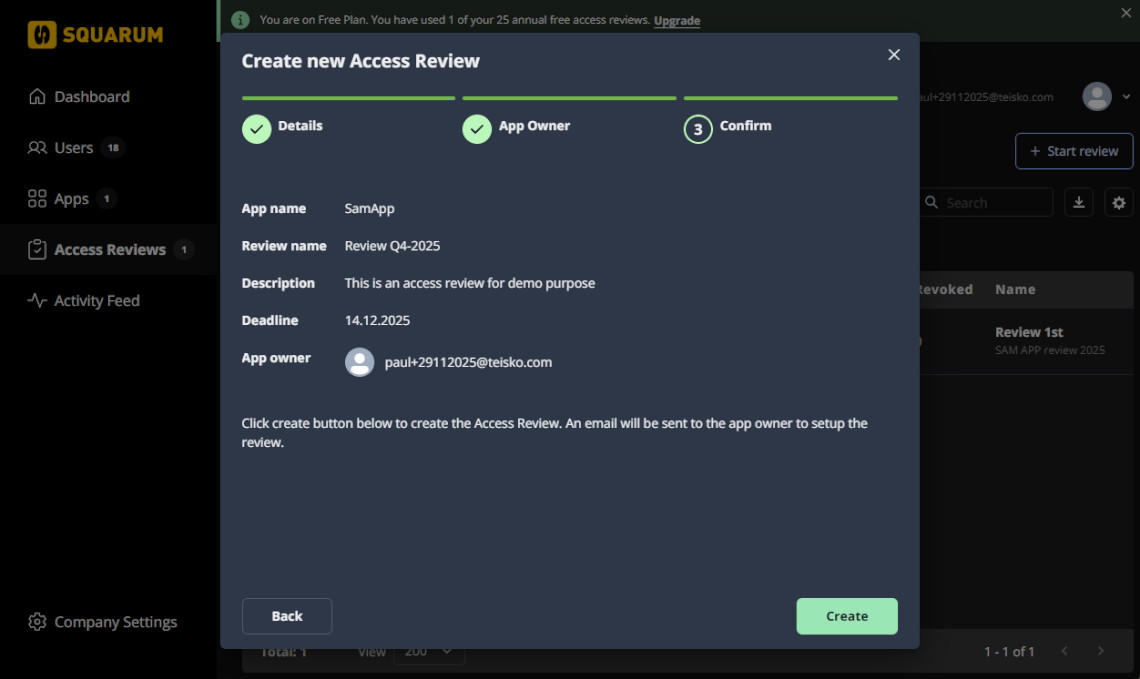
STEP 3: Confirm given data and create the new Access Review. An email is sent to the App Owner with a link to the App Owner Portal.