Help Center > Quick Start Guide
Quick Start Guide
Squarum Knowledge Base Article
Last Updated: November 30, 2025
How to run your first User Access Review in 10 minutes?
Squarum is a SaaS platform allowing companies conduct their user access reviews efficiently and gathering all related data into a single location.
How to start with Squarum?
Start by navigating to https://app.squarum.com/register and enter the required information for the sign up. You will receive an email to verify your email address and after the email is verified, you may immediately start using Squarum.
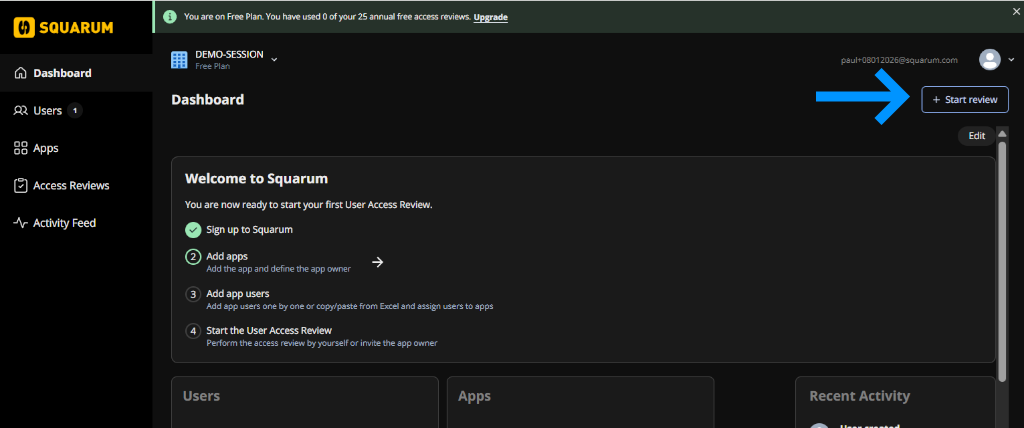
When signed up, the Squarum start page provides you with a step-by-step guidance.
What's in the Squarum Free Plan?
Squarum comes with a Free Plan which helps you to replace spreadsheets and tools that are not designed for conducting User Access Reviews efficiently. When signing up, Squarum is by default launched in the Free Plan mode. Compare Squarum Free Plan features with paid plans here. The paid plans are designed for larger companies and MSPs with custom needs and heavy use.
Upgrade or downgrade a site
You may at any time upgrade or downgrade Squarum from the ‘Company Settings’. Check the Payment terms from the Squarum Terms of Use.
How to add more admins to Squarum?
You can invite more admins to Squarum by navigating to ‘Company Settings’ and clicking the Admins tab. Click the ‘+ Add new admin’ button and follow the instructions. An email is sent to the invited admin. By following the instructions, the invited admin gets access to your Squarum site.
Basic user roles in Squarum
There are 3 built-in roles in Squarum.
Admin: Admins have full access to all features in Squarum admin console. Admins are invited and managed (add/remove) from the ‘Company Settings’ page. Admins last login time can be checked from the ‘Company Settings’ page.
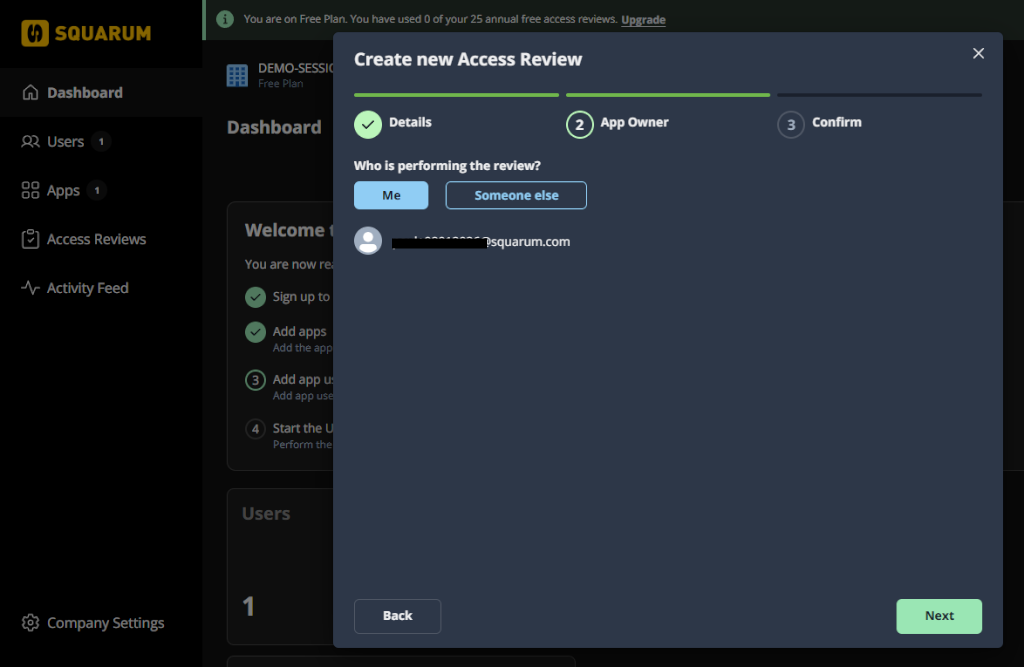
App Owner: An App Owner is the role who performs and set up the User Access Review. App Owners add the users, reviewers and all required data to perform the Access Review. When the set up is ready, the App Owner activates the review and monitors the progress. App Owners operates using the Squarum App Owner Portal. App Owners are added and managed by the Admins. Each app in Squarum requires and App Owner defined.
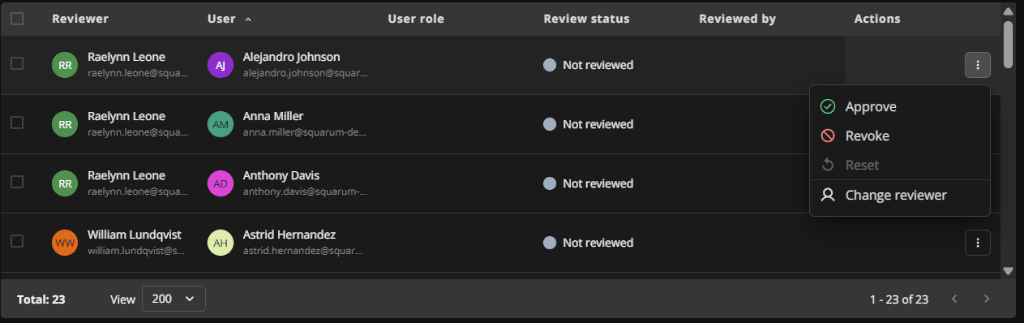
Reviewer: When an Access Review is set up, it always consist of the app being reviewed as well as the app users and reviewers. Each user always have to have a Reviewer defined. When the Access Review is activated, an email is sent to the Reviewers to conduct (approve/revoke) the review. Reviewers operates using the Squarum Reviewer Portal.
Basic elements of an User Access Review
An access review consists of four Basic elements:
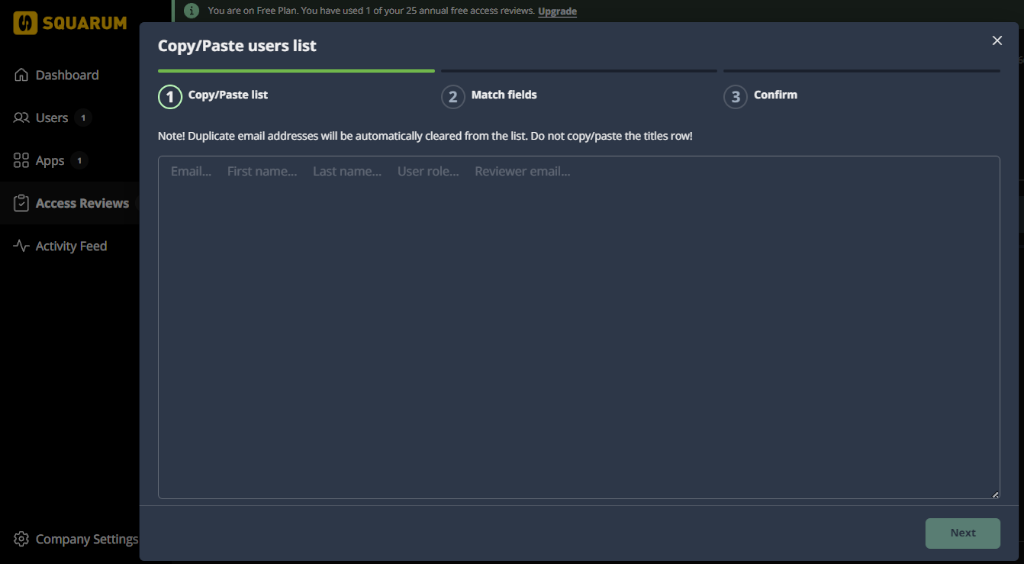
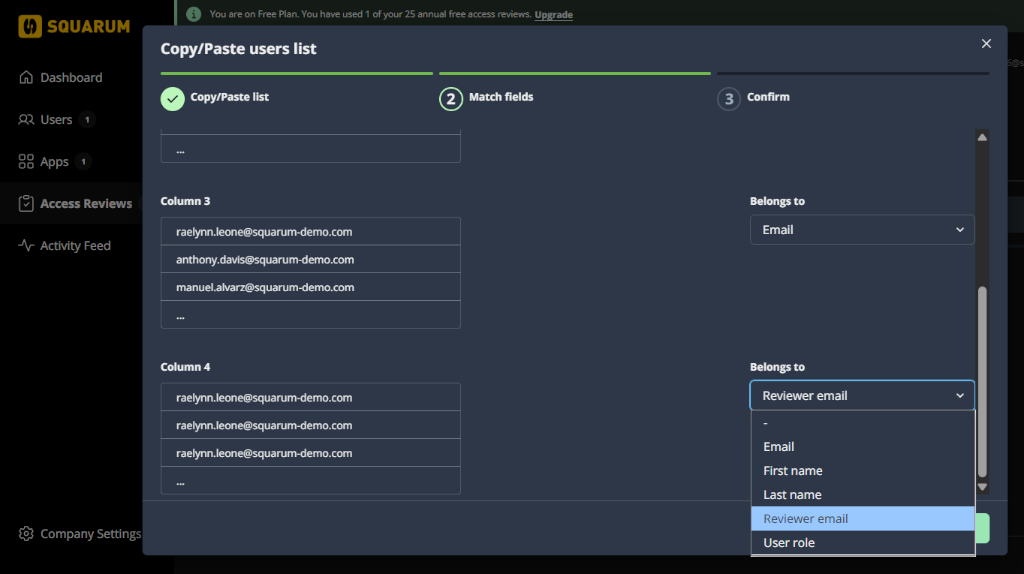
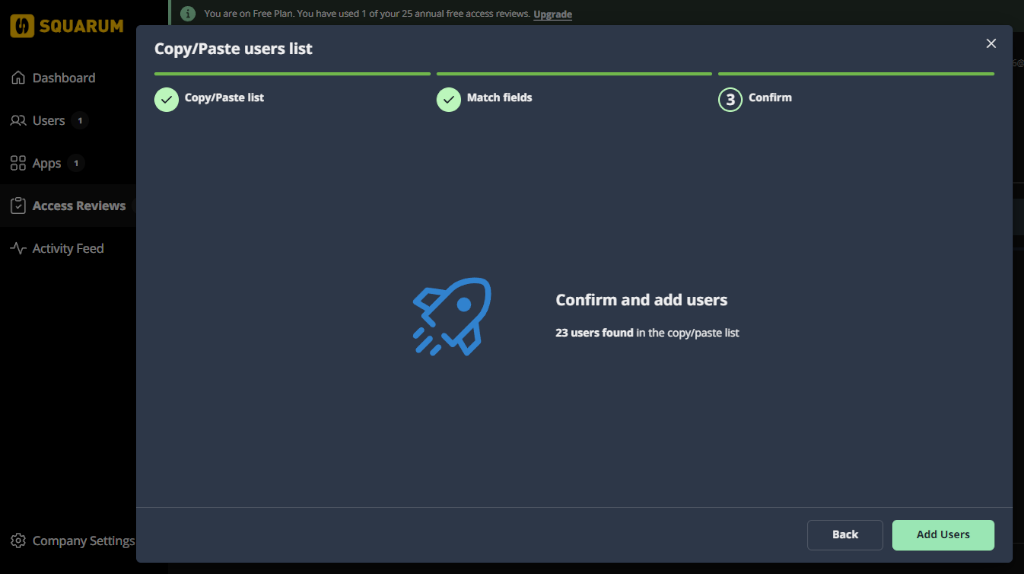
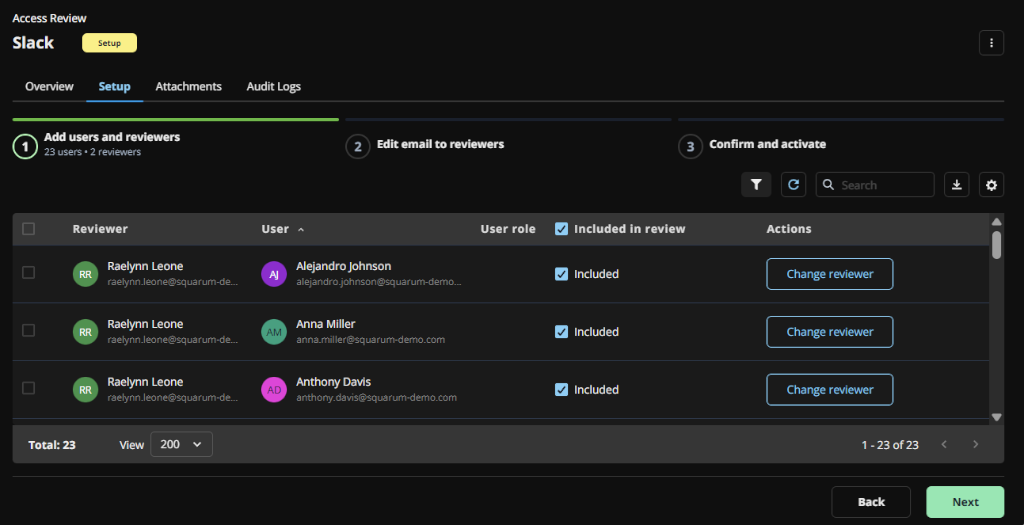
- User: in the set up phase you have to import the list of users using the app. This typically includes data like email address, first name, and last name. Squarum provides multiple methods for importing users.
- User Role: the user’s role, or in other words, their level of access to the app, is critical information for the Access Reviewer. This is to ensure the user rights align with their current job functions.
- Access Reviewer: in the set up phase you have to define the Access Reviewer for each user. This is the person who will either approve or revoke the access to the app as well as also checking the user’s role.
- Review status: each user’s access and access level is either approved or revoked by the Access Reviewer.
Basic steps of an User Access Review
The access review process consists of five major steps:
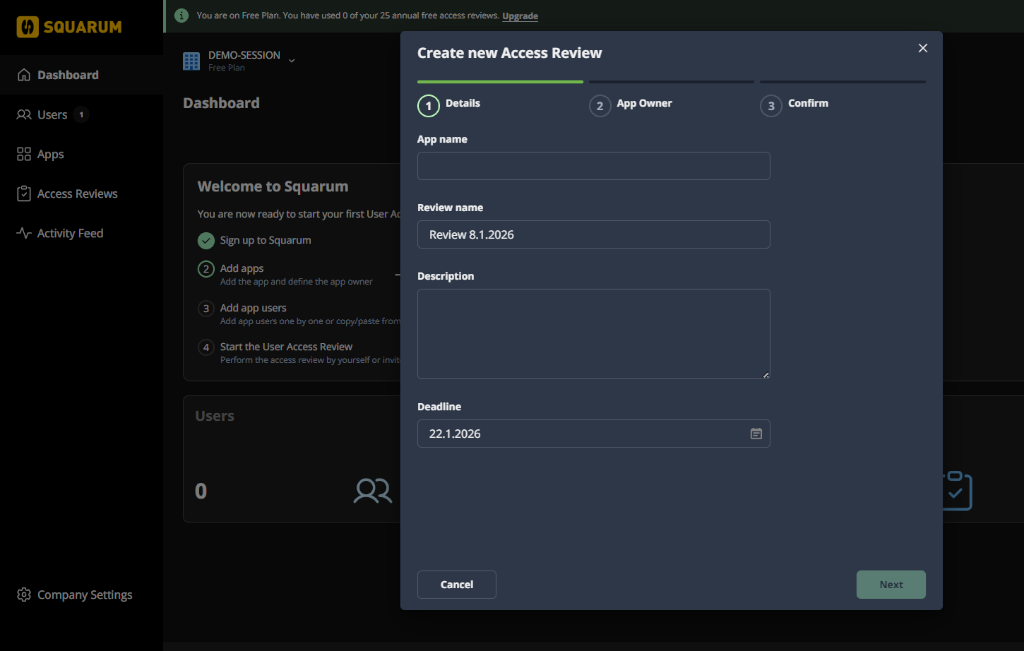
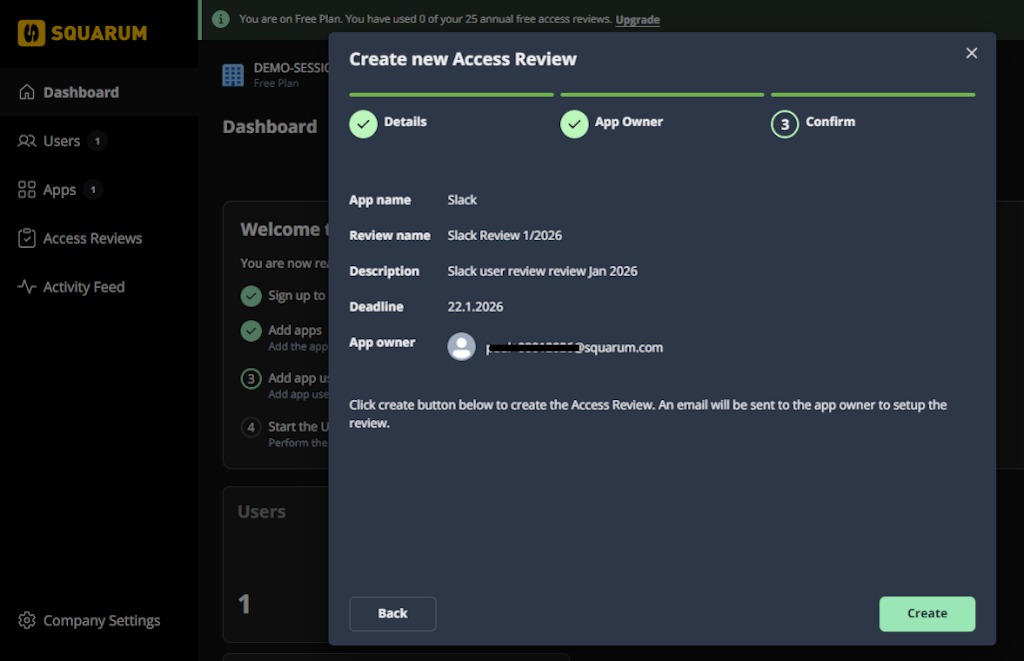
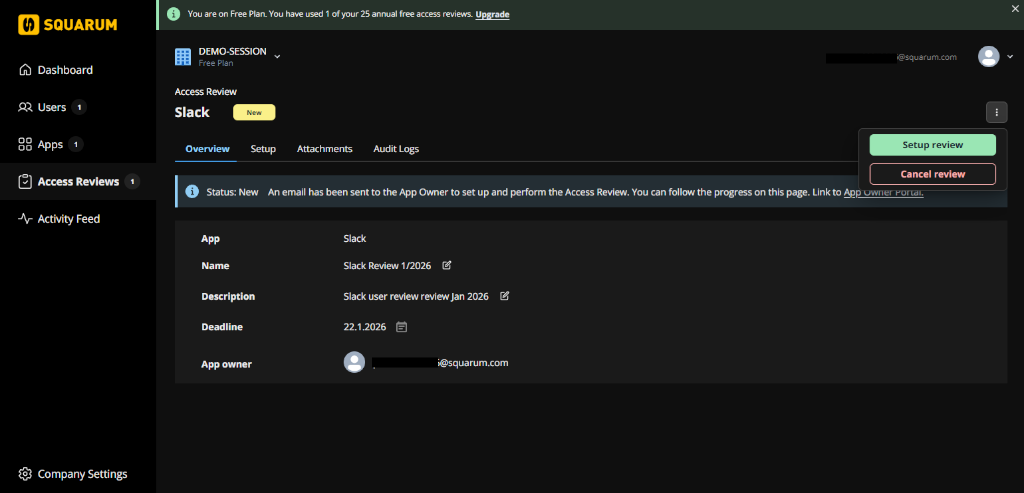
- New: when creating a new Access Review you will define the app, app owner, deadline, name, and description about the Access Review. When created, an invitation is sent to the App Owner for setting up the new Access Review.
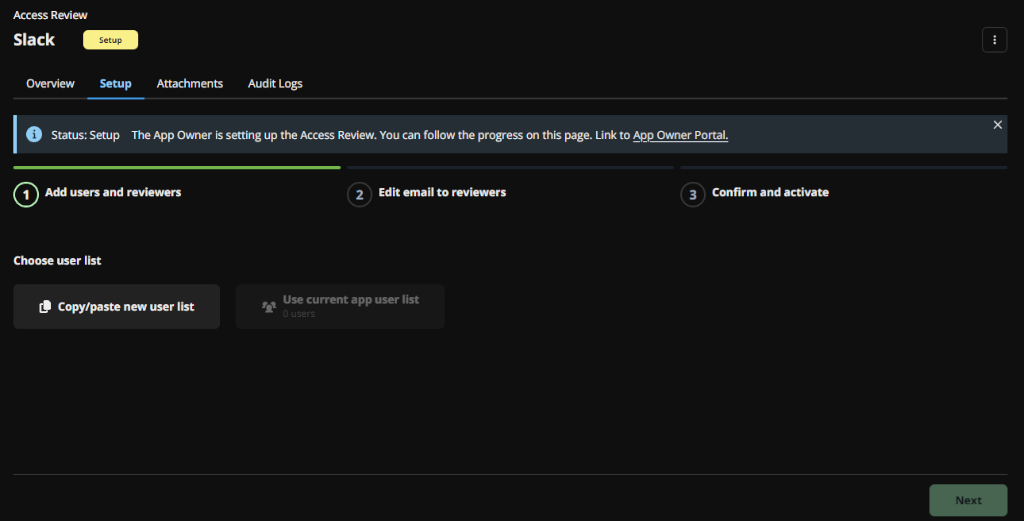
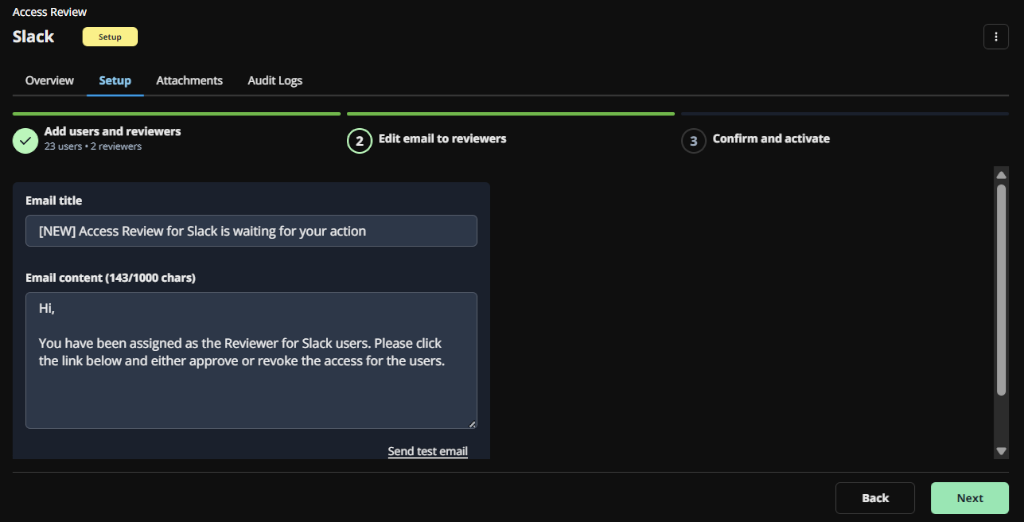
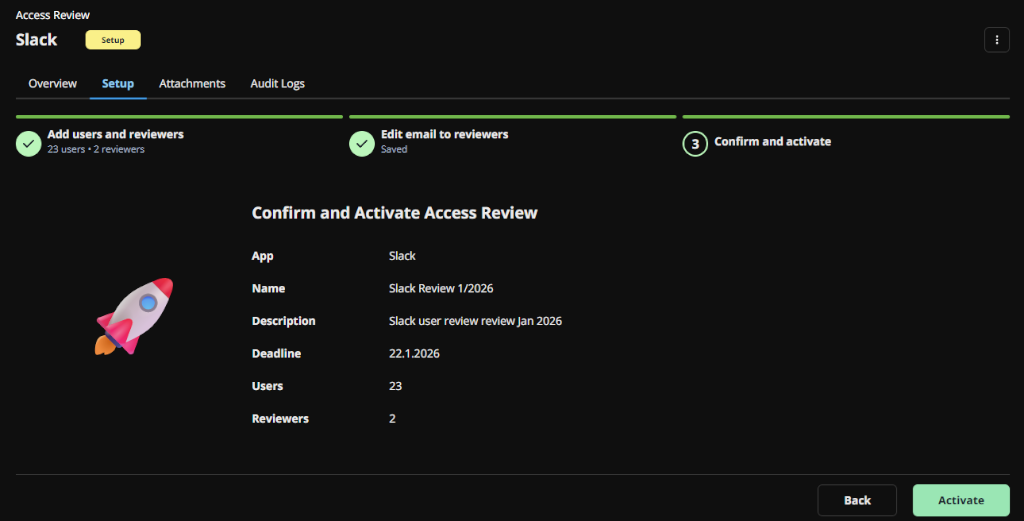
- Setup: when the App Owner starts to set up the Access Review, the status of the Access Review is changed automatically to ‘Setup’. During the setup phase the app users, their roles/permissions and reviewers are defined. After all preparative tasks are ready, the Access Review can be activated and an invitation email is sent to the Access Reviewers.
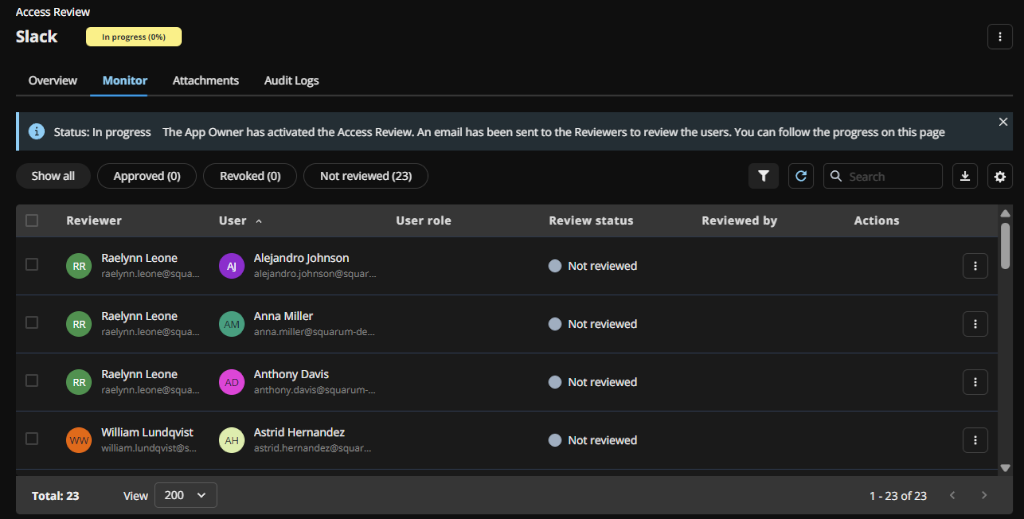
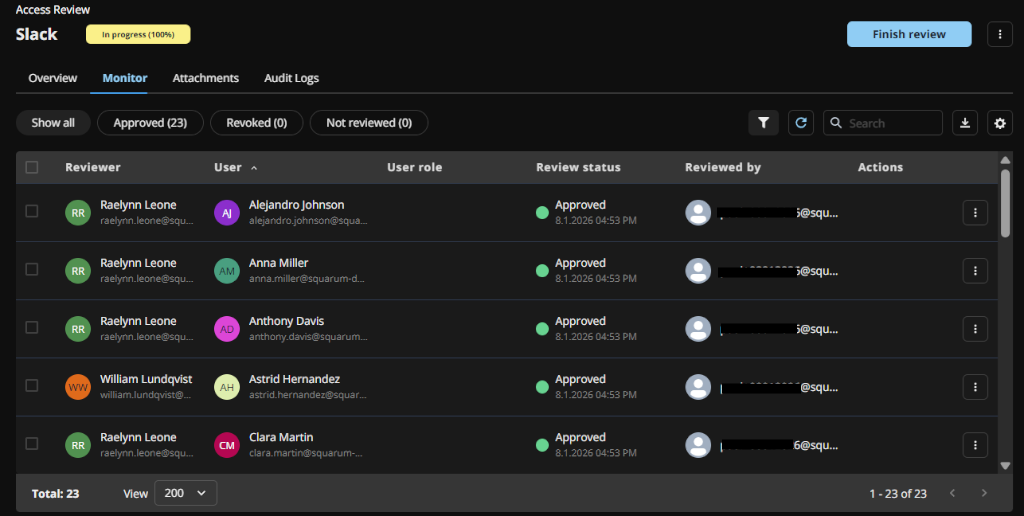
- In progress: this is where the Access Reviewers either approve or revoke the reviewed users. The app owner and the admins are able to monitor the progress and able to send reminders to the reviewers.
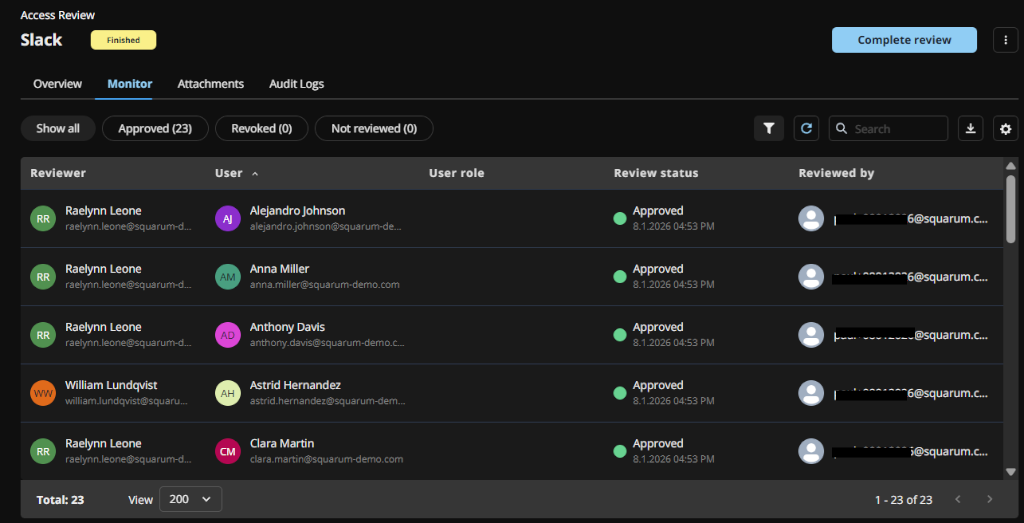
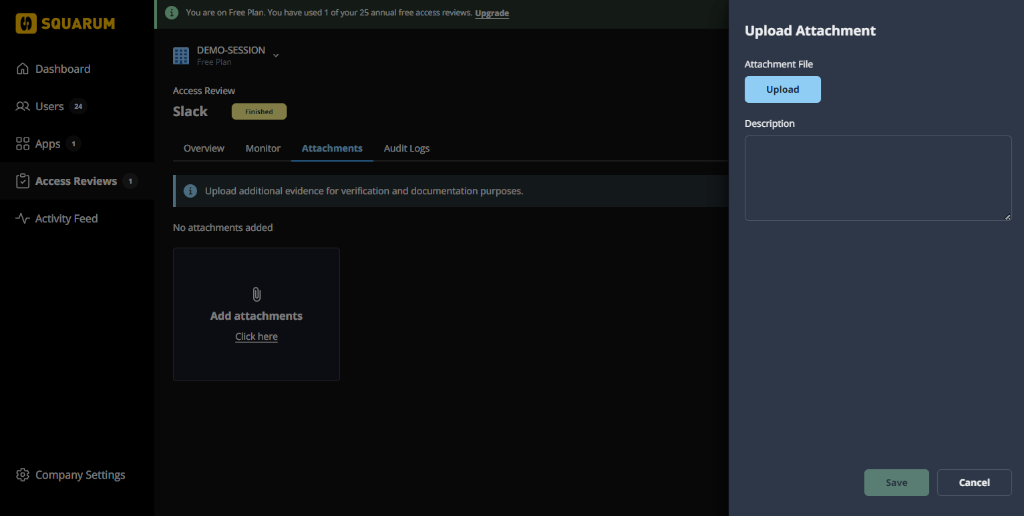
- Finished: when all users are reviewed and all reviewers has clicked the “I’m ready” button for confirming that the review is finished, then the Access Review status is changed to Finished. At this stage all corrective actions should take place.
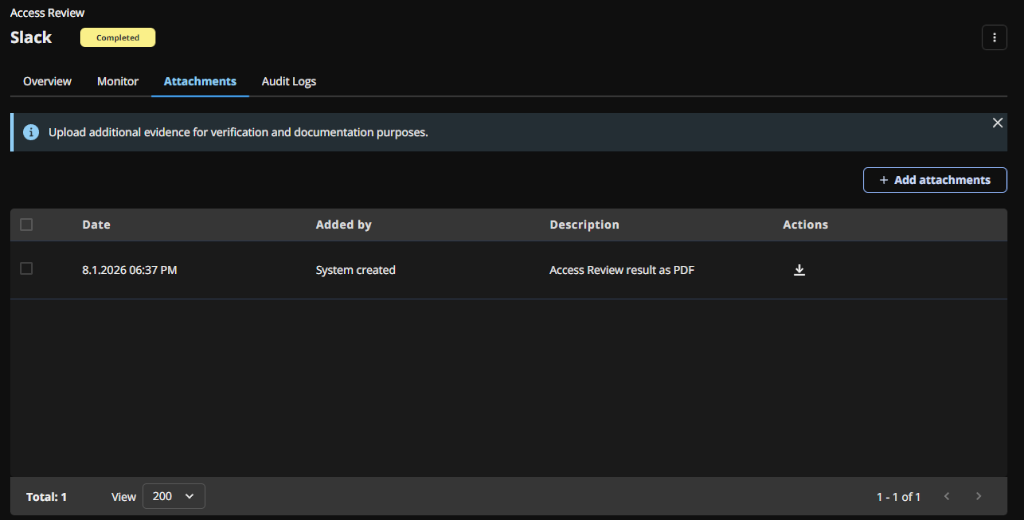
- Completed: When all corrective actions have been taken, the Access Review status can be changed to ‘Completed’.
Previous
Next
Have more questions?
Don’t worry, you can always contact us by email. We are more than happy to assist.